Clearing
What is Clearing?
Clearing is how you tell MultiViz “I have reviewed this.” When you clear a source, all of its active events are marked as reviewed and its priority resets. From that moment on, the priority column only reflects new changes — so an empty cell always means “nothing new since my last assessment.”
When to clear
- After you have investigated a priority alert and understood what caused it.
- After a repair or maintenance action, once you have verified the machine’s behavior.
- When an alert turned out to be expected behavior (for example a known process change).
How to clear
In the Overview page, machines are listed in order of priority. A red priority means that new events have happened since you last reviewed and cleared the source — so it’s worth another look.
When you’re ready, open the Deep Analysis page and click the Clear icon in the top-left corner. The icon tells you whether there is anything to clear:
Active
There are events to review — clearing is available.
Inactive
Nothing new to clear — the source is up to date.
When clearing, you’ll be prompted to log a few helpful details:
- What was the issue or result of the analysis?
- What actions were taken (or will be taken)?
- If a work order was created, what’s the reference number?
All closed alerts remain accessible in the Closed tab, building a searchable history for future auditing and diagnostics.
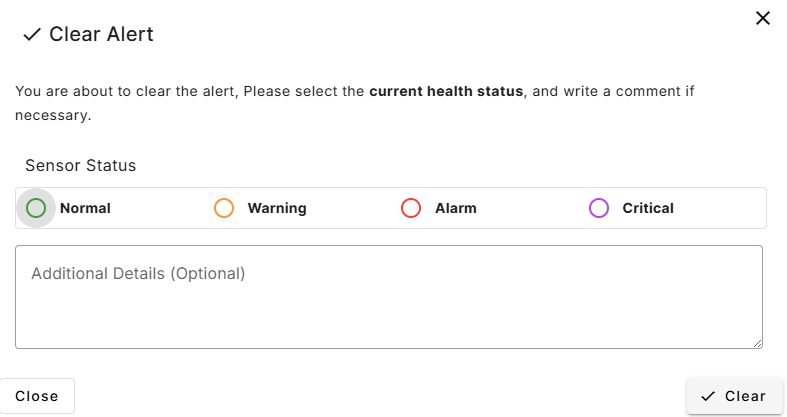
Choosing the right status
Clearing and assessing the machine go hand in hand: when you clear, you also set the machine Status. Priority is calculated automatically from events, but Status is your expert judgement — so every clearing is also the moment you record how the machine is really doing.


Setting the right status helps your team focus on what matters most and keeps your Status View tidy and up to date. Remember to set it back to Normal once the machine is back to its expected behavior.
What clearing does — and does not do
- It resets priority for that source. If new events occur later, priority rises again — clearing is not a mute button.
- It records the Status you choose at clear time, so priority and your assessment stay in sync.
- It does not fix the machine. Clearing logs your review; any physical action still needs to happen on the asset.
Who can clear
Users with User access level or higher can create clearings. Viewers can see data but cannot clear. See Managing Users for the access levels.
Good practice
Treat clearing as the last step of every investigation: investigate → decide → set Status → add a note (and work-order reference) → clear. That keeps the overview clean and your team’s history complete.