June Improvements Roundup
This month's update is all about sharper spectrum analysis. MultiViz gets multi-point picking, a waterfall view, frequency filtering, and a handful of workflow improvements that make pinpointing faults faster and more precise.
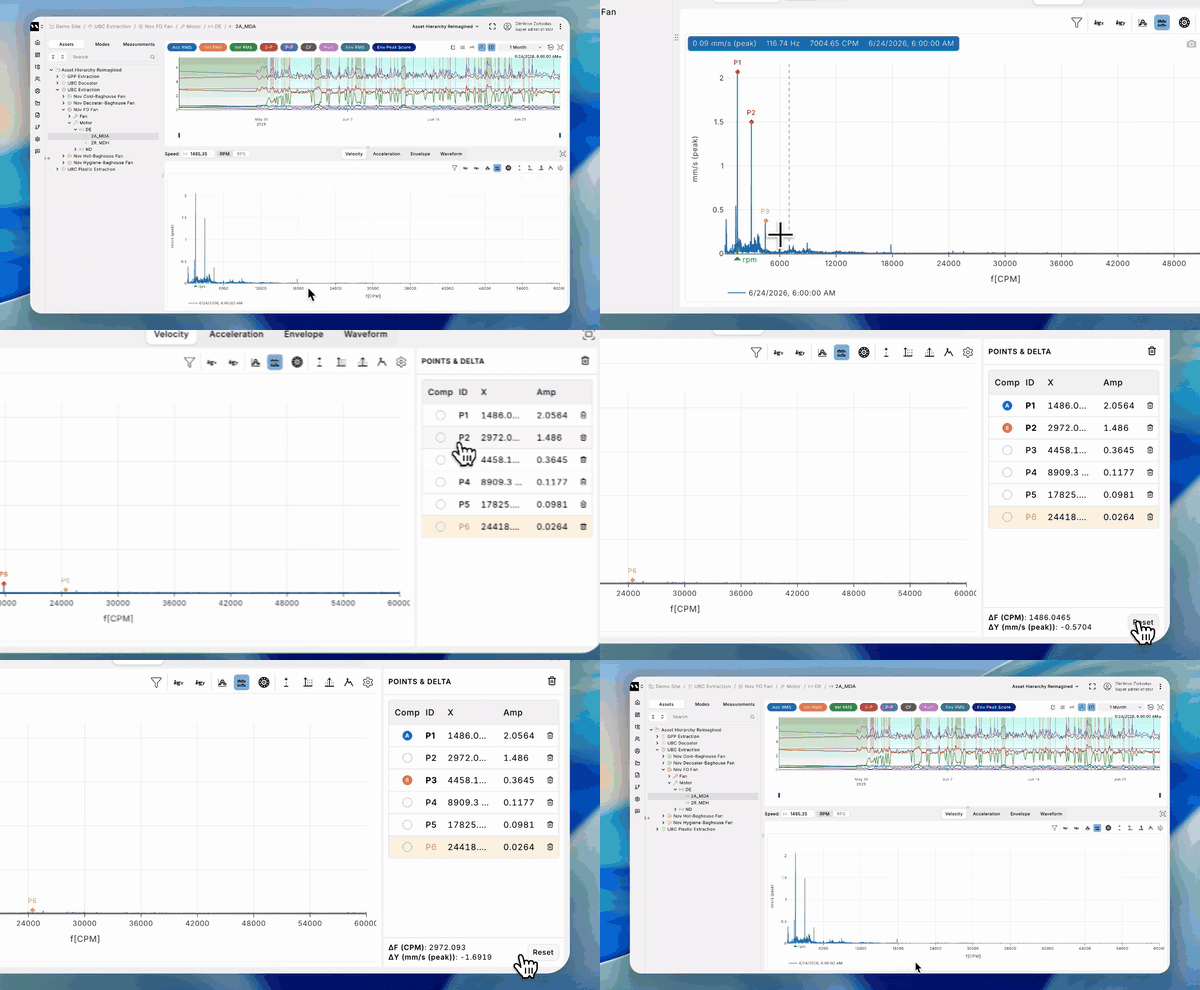
Multi-point picking on the spectrum
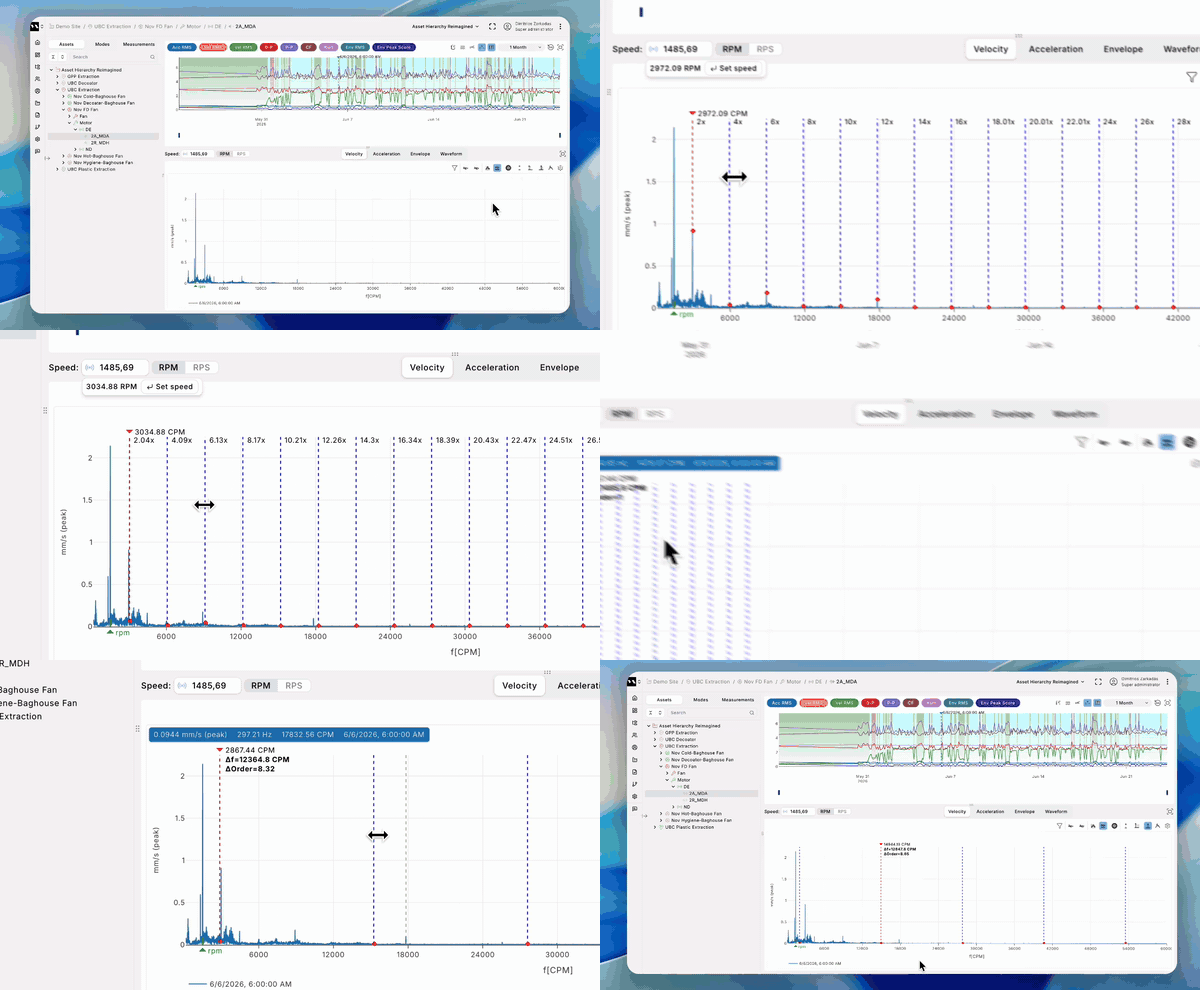
Drop multiple cursors on the spectrum and keep them in a side panel as you analyze. Ctrl+click to add a point, or press P to drop one next to the active cursor. Each appears as a row in the side panel showing its X and amplitude. Click a row to make it active, then use arrow keys to nudge it one step at a time — or Shift+arrow to snap to the next peak.
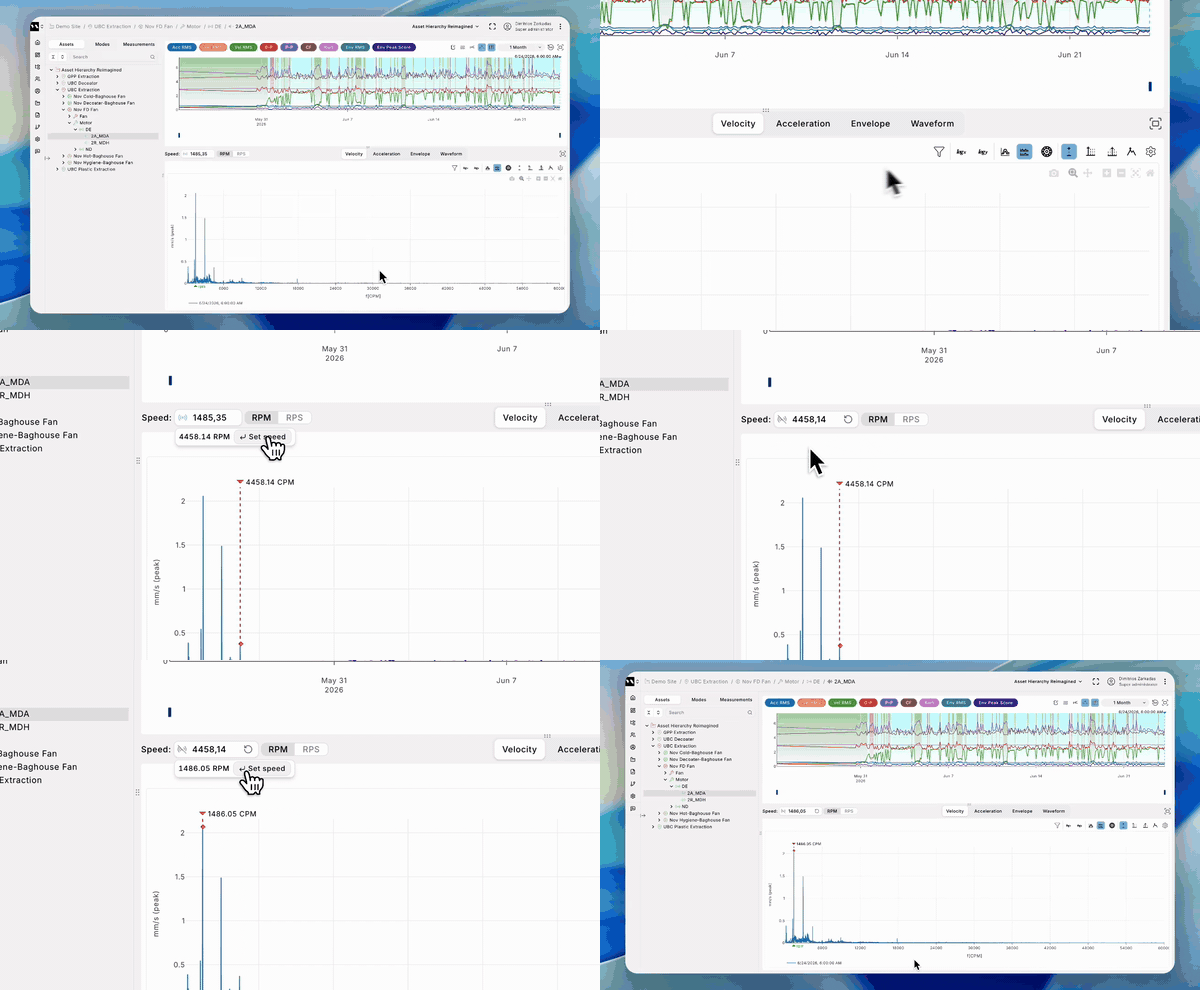
Set running speed from a point
Lock in the asset's RPM straight from the spectrum. With the single cursor active, click any peak, then press ENTER — and the running speed is set from that frequency.
Harmonic families at a glance
See every harmonic family Multiviz has detected for the current spectrum. Hover the harmonic tool to preview the list, click one to load it onto the chart instantly.

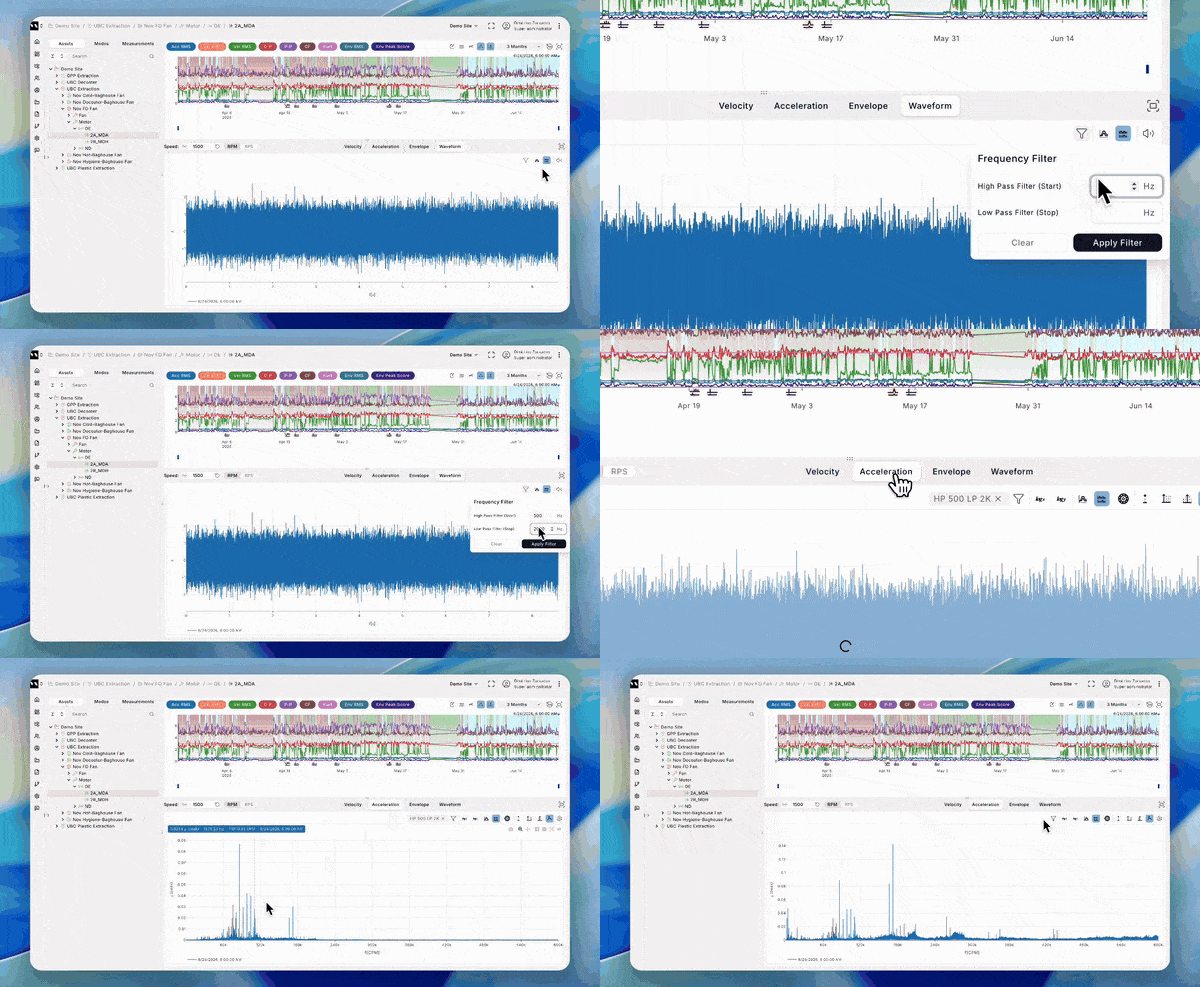
Frequency filter on waveform views
Cut out noise outside the band you care about. Set high-pass and low-pass cutoffs in Hz on waveform sources, and the filter applies to the waveform, acceleration spectrum, and velocity spectrum at once. Clear it from a badge whenever you want the full band back. The envelope spectrum keeps its own dedicated filter.
Drag any sideband line
Previously you could only drag the first sideband line to retune the spacing. Now you can grab any line on the plot and drag it — much faster when the feature you want to align is far from the carrier.
Waterfall plot
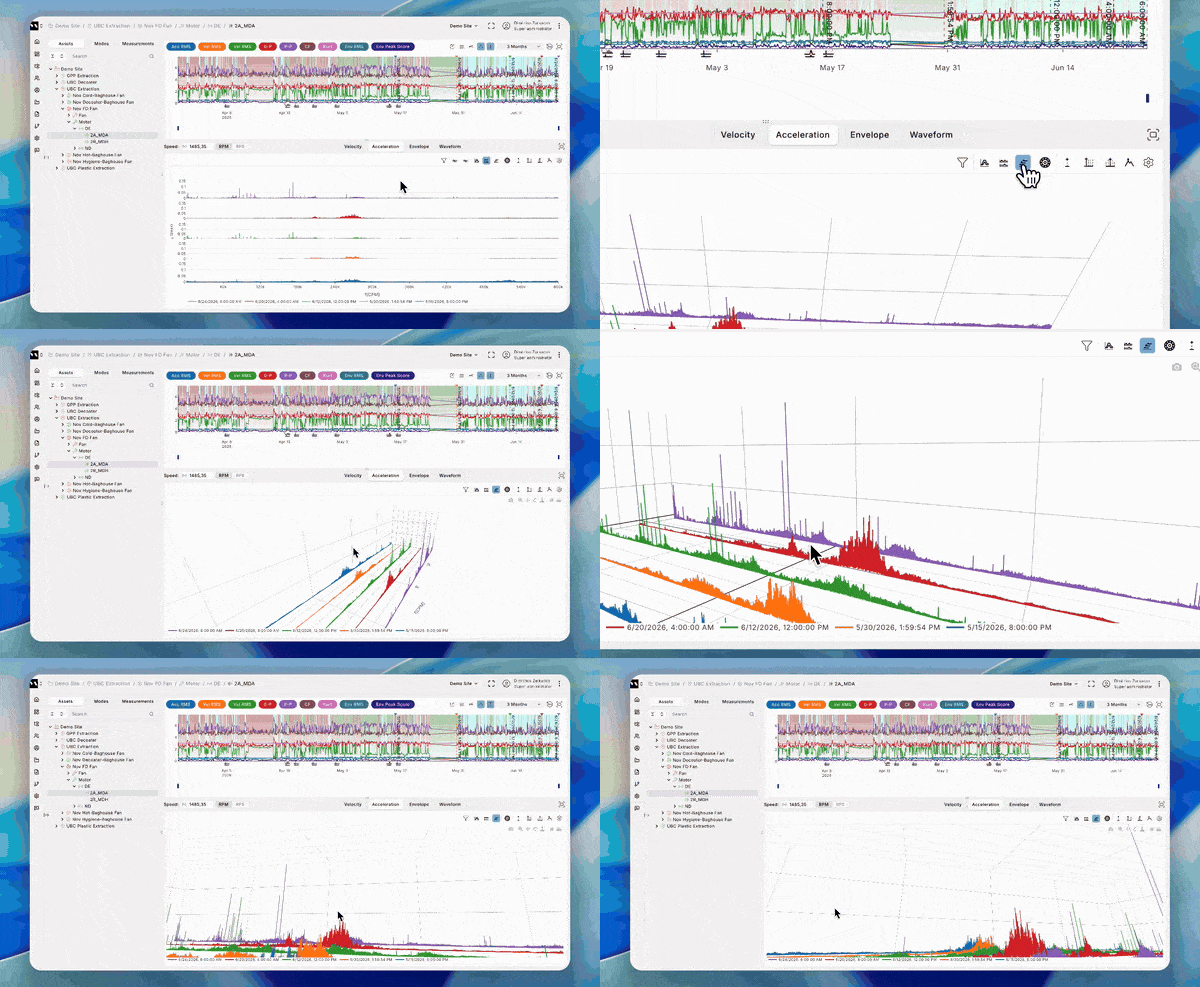
A new view that stacks many spectra in time order on one chart. Useful for watching peaks grow, sidebands emerge, or harmonics build up over time — something that's hard to spot from a single spectrum snapshot.
Hide modes from the KPI trend
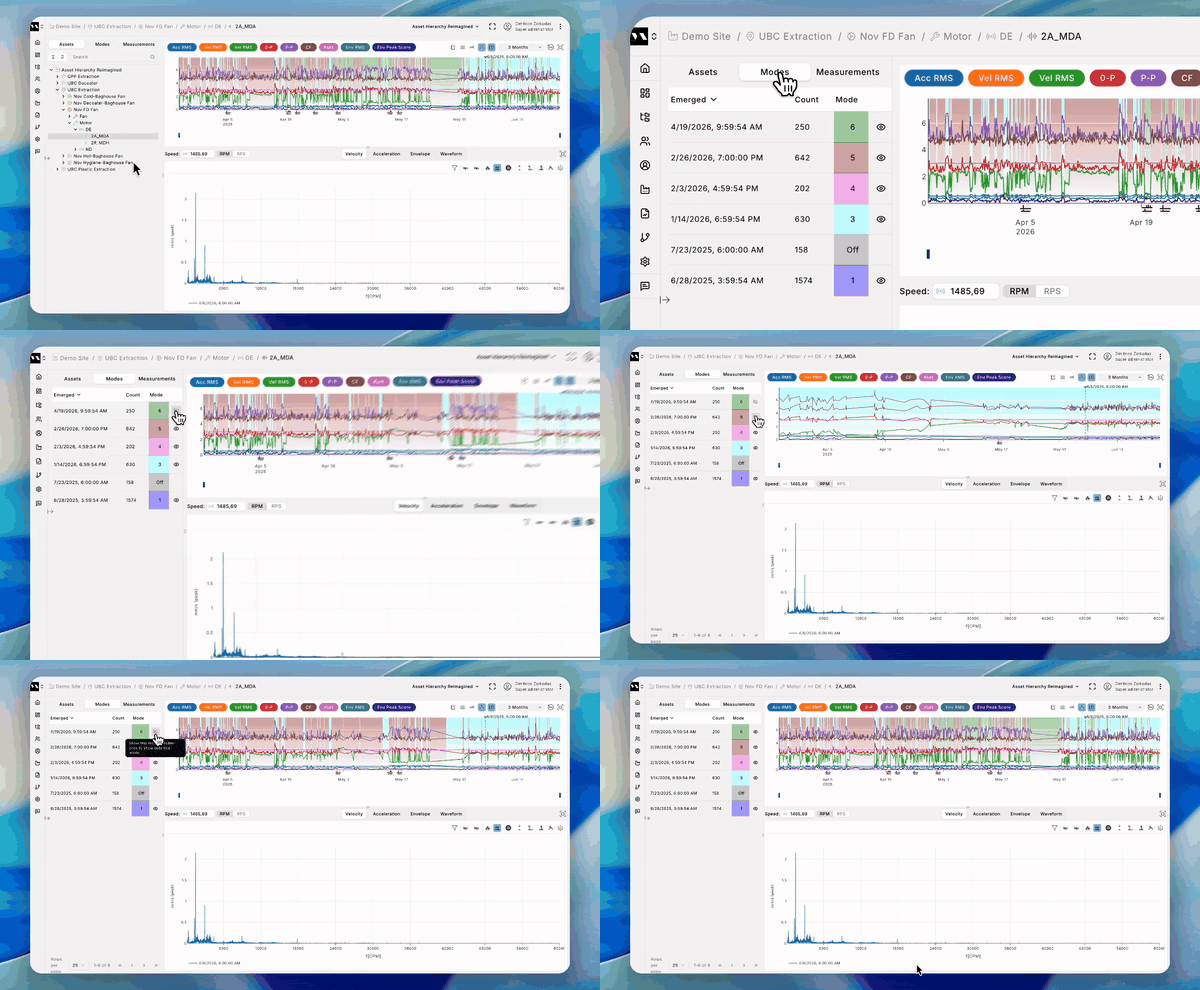
Isolate one operating regime at a time. Each row in the Modes tab now has a show/hide toggle — hiding a mode pulls its measurements and related symptoms out of the trend chart.
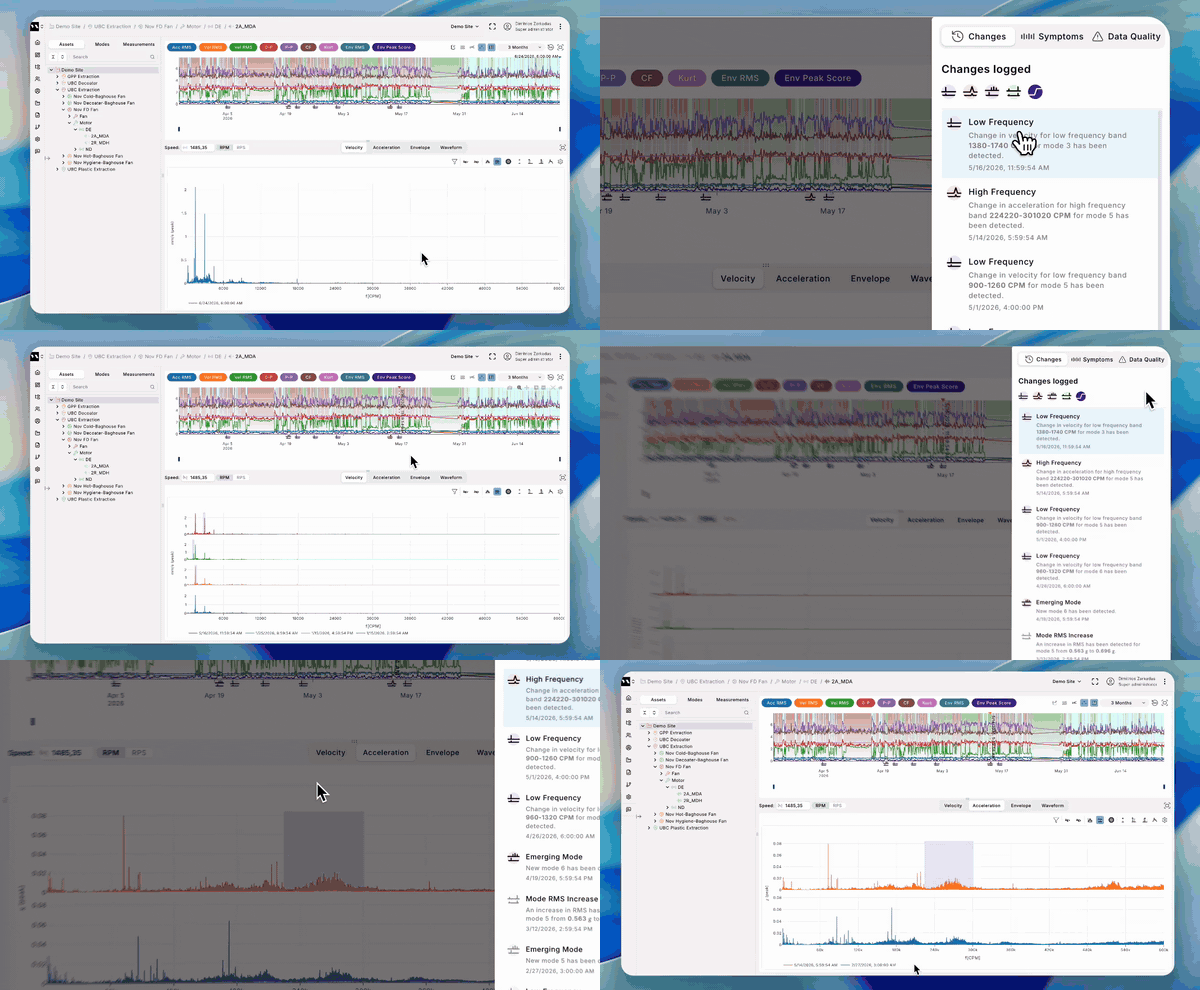
Spot the change
Selecting a detected change or symptom on the KPI trend now highlights the area on the spectrum that drove it, so you know exactly where to look first.